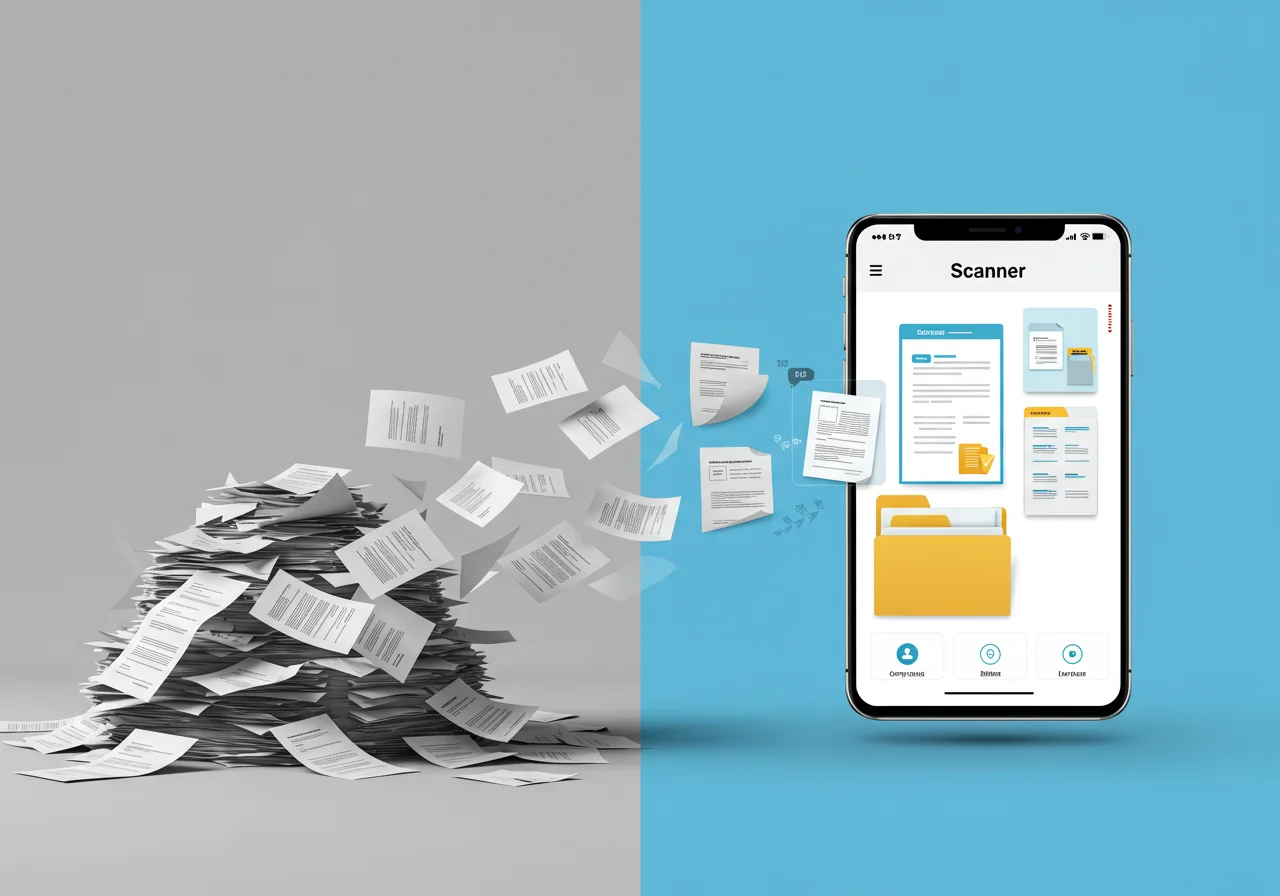
In the age of digital immediacy, there are still tasks that tie us to the past: the need to print a document, sign it by hand, scan it (if we have a scanner at hand) and then send it back. This analog ritual, which consumes time, paper and ink, not only interrupts our workflow but also generates a palpable frustration. The urgency of signing a contract, a request or a form can turn into a race against the clock, with the search for a printer that works, a scanner that doesn't respond, or no access to these resources at the crucial moment. This unnecessary friction steals valuable minutes, generates waste and reminds us how far we still are from true digital management.
Imagine, for a moment, being able to receive an important document in PDF format directly on your smartphone, add your legally valid signature with a few taps on the screen and send it back within seconds, all without touching a printer. Picture a world where bureaucracy is simpler, where agreements are closed with agility and where efficiency becomes a natural extension of your mobile device. This is not science fiction fantasy, but an accessible and transformative reality thanks to applications created specifically for signing PDF documents from your phone.
This article is your essential guide to navigating this universe of digital tools. We will not only reveal the best applications that let you say goodbye to the printer and the scanner, but also explore the legal relevance of digital signatures, how to overcome the most common challenges and how to integrate these solutions into your daily life to gain more productivity, sustainability and peace of mind. Get ready to free up your time, simplify your tasks and embrace a smarter way of handling your documents.
1. The Final Goodbye to Paper: What Does Signing PDFs from Your Phone Mean and Why Is It Crucial?
In a world moving towards digital, the act of signing paper documents often seems anachronistic. However, thanks to technological and legal evolution, signing PDFs from your phone has become a standard, efficient and legally valid practice. Understanding what this transformation involves and why it is so relevant is essential to embracing this convenience.
Definition and Types of Digital/Electronic Signature:
Signing a PDF document from your phone without printing means using a specific application to add a representation of your signature to a digital PDF file. This can be done in several ways:
- Simple Electronic Signature: It is the most common and accessible. It usually consists of drawing your signature with your finger or a stylus on the phone screen, or inserting an image of your scanned signature. In many contexts, it has legal validity if there is intent to sign and it is possible to identify the signatory.
- Advanced Electronic Signature: Requires a more robust identification of the signatory and ensures that any subsequent change to the document is detectable. It often involves digital certificates.
- Qualified Electronic Signature: It is the highest level of security, equivalent to a handwritten signature. It requires a qualified digital certificate and a secure signature creation device (such as a cryptographic token).
For the purposes of this article, we will focus mainly on applications that facilitate simple electronic signatures, the most used in everyday life for most personal procedures and many professionals.
Difference from Other Methods:
- Traditional Handwritten Signature: Requires printing, physical signing and scanning/photographing, a slow process prone to errors.
- Computer Software: Allows digital signing, but requires being in front of a computer. Mobile apps offer unmatched portability.
The Relevance of Signing PDFs from Your Phone in Your Daily Life:
The ability to digitally sign documents from a mobile device has a profound impact on efficiency, sustainability and peace of mind:
- Savings in Time and Costs: Eliminates the need to print, sign, scan and send by email. This saves valuable time, paper, ink and the cost associated with maintaining a printer.
- Productivity on the Move: You can sign important contracts, agreements or forms from anywhere (on the street, while travelling, from home) and at any time, without depending on an office or specific equipment. This speeds up processes and avoids delays.
- Environmental Sustainability: Contributes to reducing paper consumption and the carbon footprint associated with printing and transporting physical documents. It is a step towards a greener future.
- Better Digital Organization: Signed documents stay in digital format, which makes storage in the cloud, searching and management easier, avoiding the accumulation of paper.
- Reduced Stress and Anxiety: The urgency of signing a document often generates stress. Knowing that you can do it with a few taps on your phone brings invaluable tranquility and allows you to respond in time to any requirement.
- More Security (with Caution): Professional applications usually encrypt documents and offer an audit trail, which can be safer than handling physical documents, which can be lost or tampered with. (It is important to use trustworthy apps).
- Accessibility and Inclusion: Simplifies procedures for people with reduced mobility or who do not have easy access to a printer.
In essence, signing PDFs from your phone is not just a convenience, it is a tool of empowerment. It lets you manage your personal and professional life with an agility and efficiency that were once unthinkable, turning tiring procedures into quick and effortless tasks.
Reflection question: Think about the last time you had to print, sign and scan a document. How much time and effort would you have saved if you could sign it directly from your phone?
2. The Anchors of the Past: Common Challenges When Adopting Digital Signatures on Your Phone
Although the promise of signing PDF documents from your phone is tempting, the transition from analog to digital is not always smooth. There are challenges, both technical and psychological, that can slow the adoption of this practice. Recognizing these "anchors of the past" is crucial to overcoming them and fully embracing digital efficiency.
Internal and External Barriers:
- Lack of Familiarity and Fear of the Unknown: For many people, the idea of "drawing" a signature on a screen or using an app for something as important as a contract can cause distrust. The habit of handwritten signatures is strong, and unfamiliarity with apps can seem intimidating.
- Concerns About Legal Validity: One of the biggest barriers is doubt about whether an electronic signature made on a phone is really "legal" or "accepted". Not knowing the legislation on electronic signatures (which is solid in most countries) can lead to indecision.
- Document Security and Privacy: "If I upload my document to an app to sign it, who else can see it?" "Is my personal data protected?" Concerns about document security and the privacy of personal information in the cloud are very valid and can create resistance.
- Signature Quality (the "Digital Scribble"): Some people get frustrated by the difficulty of "drawing" a legible and aesthetically pleasing signature with a finger on a touchscreen. The signature may look "ugly" or unprofessional, which reduces confidence in its validity.
- Managing Multiple Apps and Fragmentation: There are many apps for signing PDFs, and each may have slightly different features. Deciding which one to use, or whether you need several, can cause confusion and a sense of a fragmented workflow.
- Difficulty Finding the Right Document: Without good file organization on your phone or in the cloud, finding the exact PDF that needs to be signed can be frustrating, even before you start signing.
- Dependence on an Internet Connection: Although many apps allow offline work, the initial process of loading or sending the document requires a connection. This can be a problem in areas with poor coverage or during periods of low connectivity.
- The Belief That It Is "Too Complicated" or "Only for Experts": For those who don't consider themselves "tech experts", digital signing may seem like a complex skill, restricted to professionals or people with advanced technical knowledge.
These "anchors" can prevent people from benefiting from a tool that would greatly simplify their lives. However, with the right information and suitable apps, these obstacles dissolve, revealing a clear path toward digital efficiency.
Reflection question: Which of these doubts or fears about digital signing on your phone held you back the most in the past? How do you feel knowing that these concerns have solutions?
3. Your Digital Pens: The Best Apps for Signing PDF Documents on Your Phone
Fortunately, the market is full of well-designed apps that make signing PDFs on your phone a simple, secure and legal task. Here are some of the best options, highlighting their strengths and how they can help you overcome the most common challenges.
1. Adobe Acrobat Reader: The Market Standard (Free with Premium Features)
- Focus: Premier PDF reader and editor, with powerful signature and commenting tools.
- Availability: Android and iOS (free for basic viewing and signing features, with a paid subscription for advanced editing).
- Ideal for: Anyone already familiar with PDFs who needs a reliable, robust and globally recognized solution.
- Strengths (Free Signing Features):
- "Fill & Sign" Feature: Lets you easily sign documents with your finger or a stylus. You can create a signature and save it for future use, or write your initials.
- Form Filling: Not only signing, but also filling in text fields in any PDF document.
- Comments and Highlighting: Basic tools for annotating the PDF before signing.
- Cloud Storage Integration: Open files directly from Google Drive, Dropbox, OneDrive, etc.
- Legal Recognition: Adobe is a market standard, which increases confidence in the validity of signatures made with the app.
- Points of Attention: More advanced editing features (organizing pages, editing text) require an Adobe Acrobat Pro subscription.
- How to Use:
- Open the PDF in the Adobe Acrobat Reader app.
- Tap the pen icon or look for the "Fill & Sign" option.
- Create your signature (draw it or write your initials).
- Place it where you want it in the document and save the signed PDF.
2. DocuSign: The Leader in Legally Binding Electronic Signatures (Free to Send 3 Documents)
- Focus: Professional solution for electronic signatures, with a strong emphasis on security and legal validity.
- Availability: Android and iOS (free for a limited number of sends, with a paid subscription for unlimited use).
- Ideal for: Professionals, freelancers or anyone who needs to send and sign documents with high legal validity and an audit trail.
- Strengths (Limited Free Plan):
- Legally Binding: DocuSign is one of the most recognized and legally binding platforms for electronic signatures.
- Complete Audit Trail: Provides a certificate of completion with a detailed audit trail for each signed document.
- Easy to Use: Intuitive interface for uploading, marking, and signing documents.
- Notifications: Receive notifications when a document is signed.
- Points of Attention: The free plan only allows sending up to 3 documents for signature. For regular use, a paid subscription is required. It is geared more toward “requesting signatures” than “signing your own documents.”
- How to Use:
- Upload the PDF from your phone or the cloud.
- Indicate where signing is required and other fields (date, text).
- Add your signature (draw, type, or use an image).
- Send the document for signature or sign it yourself.
3. SignNow: Efficiency and Speed (Free Trial)
- Focus: Fast and efficient signing workflows for individuals and teams.
- Availability: Android and iOS (with a free trial and, afterward, a paid subscription).
- Ideal for: Users who need to process a moderate volume of documents and value speed and ease of use.
- Strengths (During the Free Trial):
- Optimized Interface: Very easy to use, designed for efficiency.
- Reusable Templates: Create templates for documents you sign frequently.
- Recurring Signatures: Allows a single document to be signed by several people.
- Audit Trail: Like DocuSign, it offers detailed tracking of every signature.
- Points of Attention: There is no relevant permanent free plan. It is a good option to test before committing.
- How to Use: Upload the PDF. Drag the signature fields and other elements. Sign with your finger or with your saved signature. Send or download.
4. PDFelement: Full Editor with Signing Feature (Free with Watermark/Limitations)
- Focus: PDF editor with several functions, including a powerful signing tool.
- Availability: Android and iOS (functional free version, with a watermark in some cases or limitations, and a paid subscription to unlock everything).
- Ideal for: Users who not only need to sign but also frequently edit, annotate, or merge PDFs.
- Strengths (Free/Basic Signing Functions):
- Easy Electronic Signature: Allows you to draw, type, or import an image of your signature.
- Broad PDF Tools: Besides signing, you can annotate, highlight, fill out forms, and even make basic text edits.
- Page Organization: You can reorder, rotate, or delete pages of a PDF.
- Cloud Integration: Connectivity with popular cloud storage services.
- Points of Attention: Some advanced functions may leave a watermark or require a paid subscription. It can be more complex for users who only want to sign.
- How to Use: Open the PDF. Look for the “Sign” option. Create your signature and position it. Save the document.
5. Google Drive / Google Docs (Signatures with Add-ons or Simple Drawing): Integrated Solutions
- Focus: Productivity platforms with the ability to add signatures to PDFs or documents.
- Availability: Web, Android, iOS.
- Ideal for: Users who already work within the Google ecosystem and want a basic signing solution without installing additional apps.
- Strengths:
- Native to the Google Ecosystem: Requires nothing extra to install if you already use Google Drive.
- Basic Signing in Docs: You can insert a “drawing” (your signature) into a Google Docs document and then download it as a PDF.
- Drive Add-ons: There are third-party add-ons (such as HelloSign for Google Workspace) that integrate with Google Drive and offer more advanced signing functions (although they are often paid or have limited free plans).
- Points of Attention: The native signing function is more rudimentary than in dedicated apps. It requires a bit more ingenuity for pure PDFs, without add-ons.
- How to Use (Example in Google Docs):
- Open a document in Google Docs.
- Go to “Insert” > “Drawing” > “New”.
- Use the “Line” tool to draw your signature.
- Save, and it will be inserted into your document. Then you can download the document as a PDF.
Practical exercise: Choose the Adobe Acrobat Reader app, since it is free and a market standard. Download it to your phone. If you have a sample PDF (or can create a simple one with a notes app and export it to PDF), open it in Adobe Reader. Practice the “Fill & Sign” function by creating your signature and positioning it in the document. Then save and send the signed PDF to your own email. Experience the magic of digital signing!
4. Navigating Legal and Practical Challenges: Maintaining Trust in Your Mobile Signature
Adopting PDF document signing from your phone is a big step toward efficiency, but for it to be sustainable, it is crucial to maintain confidence in its legal validity and overcome the practical obstacles that may arise. A digital signature should not only be easy to make, but also robust and secure.
Tips for Sustaining the Habit and Security in Difficult Contexts:
- Know the Legislation in Your Region (in general terms): In most countries, a simple electronic signature has legal validity as long as there is intent to sign, the signer's consent, and it is possible to identify the signer. For highly legally sensitive documents (buying and selling property, wills), always consult a legal specialist. For most everyday procedures, signatures made with the apps mentioned are widely accepted.
- Protect Your Saved Signature: If the app lets you save an image of your signature, protect it with a password or with your phone's security features (biometrics). Prevent other people from using it without your consent.
- Use Two-Factor Authentication (2FA): If the signing app or your cloud storage service (where you keep the PDFs) offers 2FA, enable it. This adds an extra layer of security, crucial against unauthorized access.
- Always Read the Document Before Signing: The speed of mobile signing can lead to complacency. Take time to read each document carefully before adding your signature. Speed should not compromise diligence.
- Keep Your PDFs Organized: Use cloud storage apps (such as those mentioned in the previous article) to store your signed PDFs in an organized way. Give files clear names and keep them in logical folders to make retrieval easier in the future.
- Confirm Receipt by the Other Party: After sending a signed document, make sure the other party has received it and accepts the format. If in doubt, don't hesitate to ask.
- Have a “Plan B” (for exceptional cases): Although rare, a situation may arise where only an original handwritten signature is accepted. Keep in mind where you could access a printer/scanner in an emergency, so you're not completely stranded.
- Update Your Apps Regularly: App updates often include security improvements and new features. Keep your signing apps up to date to ensure the best protection and experience.
- Practice Your Digital Signature: If the drawn signature doesn't satisfy you, practice a little. Some apps let you draw it several times until you feel comfortable with the result. Remember that it doesn't need to be identical to your handwritten signature, but a recognizable representation.
Question to reflect on: If you had a very important document to sign, what extra step would you take (besides using a trustworthy app) to ensure the signature was secure and legally valid?
5. The Harvest of the Future: Long-Term Benefits of Digital Signing on Your Phone
Integrating apps for signing PDF documents on your phone into your daily routine is much more than a simple efficiency gain; it is adopting a digital lifestyle philosophy that generates deep and lasting benefits for your well-being, your productivity and your impact on the world. It is a smart investment in the future.
Positive and Lasting Impact on Your Life:
- Mental Well-Being and Stress Reduction:
- Relief from Urgency and Mental Load: Eliminating the rush to find a printer or scanner reduces a constant source of stress and anxiety. The peace of mind of being able to handle any document on the spot, wherever you are, is priceless.
- Greater Sense of Control: Being able to handle your important matters with autonomy and agility empowers you, contributing to greater self-esteem and a sense of control over your personal and professional life.
- Fewer Interruptions: By streamlining the signing process, you minimize interruptions to your workflow or free time, allowing you to focus on more meaningful tasks or enjoy your rest without being interrupted.
- Productivity and Professional Opportunities:
- Unmatched Efficiency: The ability to sign and send documents in seconds significantly speeds up administrative processes, contract completion and decision-making, improving your personal and professional productivity.
- Mobility without Commitments: You become more mobile and flexible. You can close a deal at a café, send a request from the airport or handle a personal matter in a park. Your office is wherever you are.
- Professional and Modern Image: Demonstrating agility and competence in using digital tools projects an image of professionalism and modernity, which can open doors to new job or business opportunities.
- Improved Collaboration: Makes interaction with colleagues, clients or suppliers easier by simplifying the exchange and signing of documents, improving the flow of team projects.
- Environmental Sustainability and Financial Savings:
- Positive Ecological Impact: Every digitally signed document is a tree that wasn't cut down, a sheet of paper that wasn't produced and less ink used. You actively contribute to reducing your carbon footprint and caring for the planet.
- Constant Resource Savings: Savings on paper and ink, and less wear on printing equipment, translate into concrete financial savings over time.
- Digital Organization and Security:
- Documents Always Accessible and Organized: Keeping your signed documents in digital format makes cloud storage, searching and retrieval at any time easier, avoiding physical clutter.
- More Security (if used correctly): Professional apps and cloud storage services often offer a higher level of security than physical documents, which can be lost, damaged or stolen.
In short, apps for signing PDF documents on your phone without printing are much more than a convenient tool; they enable a more efficient, sustainable and less stressful lifestyle. It is an investment in your digital autonomy and in a more connected and conscious future.
Question to reflect on: If you fully adopted digital signing on your phone, how do you think the time savings and stress reduction could positively impact other areas of your life (hobbies, relationships, rest)?
Your Personal Print Shop in Your Pocket
We unveiled the transformative power of apps for signing PDF documents on your phone without needing to print. We saw how these tools not only eliminate one of the last barriers in the digital workflow, but also free up your time, reduce your stress and give you the power to handle your affairs with unprecedented agility and efficiency.
The days of hunting for the printer, dealing with the scanner and spending on ink are definitively behind us. Control over your important documents is now in the palm of your hand, ready to be triggered with a few taps.
Now, the invitation is clear and the moment is now. Don't let habit or fear of the new hold you back. Choose one of the recommended apps, such as Adobe Acrobat Reader, which is free and a market standard. Download and install it on your phone.
Then, take a small but meaningful step: the next time you receive a PDF document that requires your signature (a request, a simple contract, a form), instead of printing it, open it in the chosen app. Practice drawing your signature or insert an image. Feel how easily you can place it in the right spot and, finally, save and send the digitally signed document.
This is just the beginning of a transformation. There will be more complex documents and unexpected situations, but with each digital signature you make, you will be building a habit of efficiency, sustainability and autonomy that will positively impact every aspect of your life. Your phone is now your print shop and your personal pen, a gateway to document management without limits. Take this first step today and experience true digital liberation.